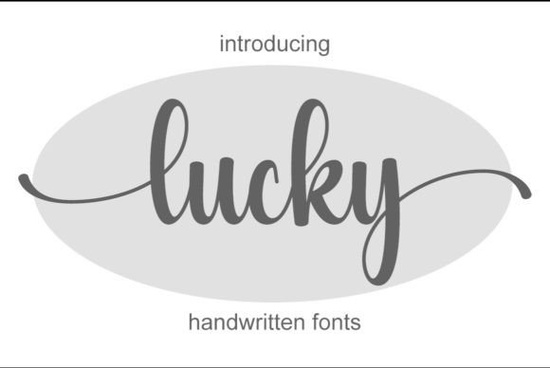
If you often hunt for a natural handwritten style that feels both graceful and easy to read, Lucky Font is worth a closer look. This elegant, delicate script typeface brings a light, airy touch to logos, branding, social media posts, invitations, and product packaging. It’s PUA encoded, so every alternate glyph and swash is ready to use right away no special software gymnastics required.
What makes Lucky’s script style stand out?
Most handwritten fonts lean in one of two directions: casual brush strokes or formal calligraphy. Lucky sits comfortably in the middle. Its thin, refined letterforms feel polished without looking stiff, and the slightly bouncing baseline keeps the text organic. The lowercase set includes long entrance and exit strokes that mimic a real fine‑tip pen on smooth paper. In a market full of chunky brush scripts, Lucky offers a quieter, more intimate voice ideal when you need sophistication that doesn’t shout.
Which design software works with Lucky Font?
Because Lucky is a standard OpenType font, you can install it on Windows or Mac and use it in practically any program that supports custom fonts. It runs smoothly in:
- Adobe Illustrator and Photoshop (full glyphs panel support)
- Procreate on iPad (import via the font folder)
- Cricut Design Space and Silhouette Studio (for craft cutting)
- Canva (with a Canva Pro font upload)
- Word and Pages for simple stationery
The PUA encoding means that even if your software lacks an advanced OpenType panel, you can still access all the fancy extras through your system’s Character Map (Windows) or Font Book (Mac). Just copy and paste the alternate characters you like.
How do I use Lucky’s alternates and swashes?
One of the biggest frustrations designers face with script fonts is wrestling to get the special characters. Lucky removes that friction.
On a desktop: open the glyphs panel in Illustrator or Photoshop, locate the PUA range, and double‑click any alternate. You’ll find swashes, stylistic sets, and ligatures that let you change the look of the first and last letters, or tie certain pairs together for a smoother connection.
On a mobile device or simpler software: use the Character Map (Windows) or Font Book’s repertoire view (Mac). Scroll down to the private use area, pick a swash letter, and paste it in place of the standard character. It’s a low‑tech method that works everywhere, from Word to Cricut Design Space.
This easy access makes Lucky a favourite among crafters who want hand‑lettered charm on mugs, tote bags, and cards without spending hours manually tweaking curves.
What projects suit this delicate handwritten typeface best?
Lucky really earns its keep in projects where a light, personal feel is key. Think:
- Wedding suites: invitation cards, save‑the‑dates, place cards, and envelope addressing. The thin strokes pair beautifully with deckled paper and soft watercolour backgrounds.
- Branding for lifestyle businesses: beauty salons, boutique bakeries, yoga studios, or wedding photographers often need a logo script that feels approachable but not childish.
- Social media quotes: overlay Lucky on a clean photo and you instantly get a warm, diary‑style aesthetic that performs well on Instagram and Pinterest.
- Product packaging: for soaps, candles, or handmade goods, the font adds a personal note without overwhelming the label.
- Print‑on‑demand: T‑shirts, hoodies, and tote bags with motivational text look natural and hand‑drawn, not factory‑perfect.
If you plan to use it on a dark background, consider adding a tiny white stroke or a subtle offset path just to keep the ultra‑thin hairlines visible. The font itself doesn’t need emboldening this small adjustment can make the design more production‑friendly while preserving Lucky’s delicate character.
How does Lucky compare to other popular script fonts?
A design toolkit often benefits from more than one script voice. Lucky’s airy elegance pairs well with other moods from the same foundry.
If you admire Lucky’s flow but need something punchier for a big headline, Montana brings a thicker brush texture while keeping that casual handwritten rhythm. For a duo that solves both script and sans‑serif needs in one package, Ourstory Duo gives you a gracefully connected script alongside a clean, geometric sans handy for logotypes and social media templates.
When the project calls for extra romance and plenty of flamboyant swashes, Shina Qatline feels like a modern Spencerian script, dripping with ornamental alternates. If you want a relaxed, California‑cool calligraphy with a slightly bouncy baseline, California nails that sun‑kissed, effortless look. And when seasonal designs roll around, Christmas offers festive, hand‑lettered charm that works on greeting cards, mug designs, and holiday sales banners.
Each of these has its own strength, but Lucky holds a unique spot as the go‑to for refined, minimal projects where less ornamentation and more whitespace let the message breathe.
Is Lucky safe for commercial work and print‑on‑demand?
Yes, a standard commercial license from Creative Fabrica covers most small‑business uses, including physical products you sell. Before purchasing, always check the specific license terms for that font, but generally you can use Lucky on T‑shirts, mugs, invitations you design for clients, and logos. Redistributing the font file itself is not allowed, but flattening it into a design is fine.
For crafters who cut vinyl or use an engraving pen, test a few trial shapes first. The ultra‑thin connectors in letters like ‘o’ and ‘e’ may need a tiny boost in stroke width or a slight weed‑friendly adjustment for intricate cuts. A quick offset path in your design software solves this without altering the visible style.
Ready to try Lucky in your next project? Here’s a short checklist before you hit download:
- Preview your text – Use a “quick brown fox” sample in the font preview tool to see how key letter pairs connect.
- Check the license – Confirm commercial terms for your specific use (POD, client work, digital templates).
- Explore the alternates – Open the Character Map or glyphs panel and find a few go‑to swashes you’ll reuse often.
- Pick a companion font – Pair Lucky with a simple, open sans‑serif (like Montserrat or Open Sans) for body text or secondary information.
- Outline before exporting – Convert text to outlines in vector files to avoid missing‑font issues when sending to print.
 Rainbow Font Design Ideas for Colorful Projects
 Best Free Christmas Fonts for Holiday Crafts & Design
 Creative Ways to Use Letterland Font in Learning Design
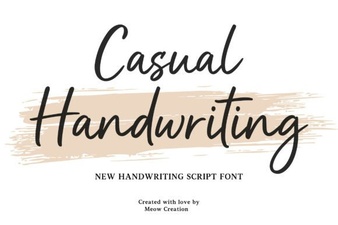 Casual Handwriting Fonts: Adding Warmth to Your Designs
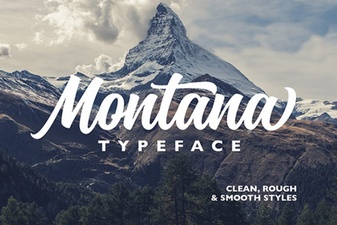 Montana Font: Fresh Design Ideas for Any Project
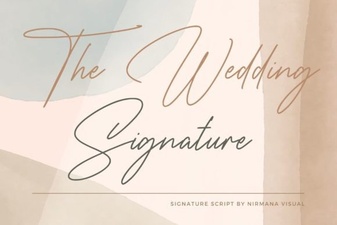 Elegant Uses for the Wedding Signature Font